H.264 vs HEVC vs ProRes: which codec should you export?
File size, quality, compatibility and editing compared, with Apple's and the ITU's own numbers, and a simple rule for picking the right one on a Mac.

Zouhair Majzoub · Founder
Nov 18, 2026 · Updated November 2026 · Formats & export · Zouhair Majzoub, Founder of Kinomo, a native Mac animation studio driven by AI agents
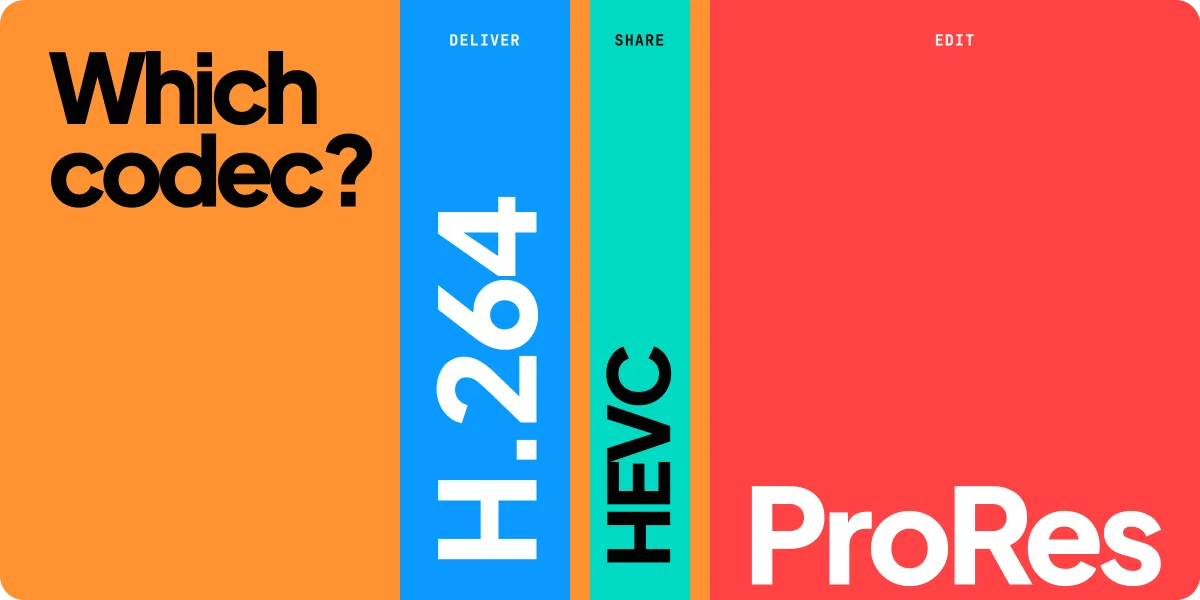
Export H.264 when the file has to play everywhere, HEVC when you want a smaller file and know the viewer's device can handle it, and ProRes when the file is going back into an editor rather than out to an audience. None of the three is "the best codec". H.264 and HEVC are delivery codecs, built to make files small. ProRes is an editing codec, built to keep quality through every re-encode, and its files are many times larger.
This guide compares the three on what actually decides the choice in 2026: file size, quality, compatibility, editing and where the file goes next. Every number comes from Apple, the ITU, a platform's own documentation or our own published render test, checked on November 18, 2026.
H.264 vs HEVC vs ProRes at a glance
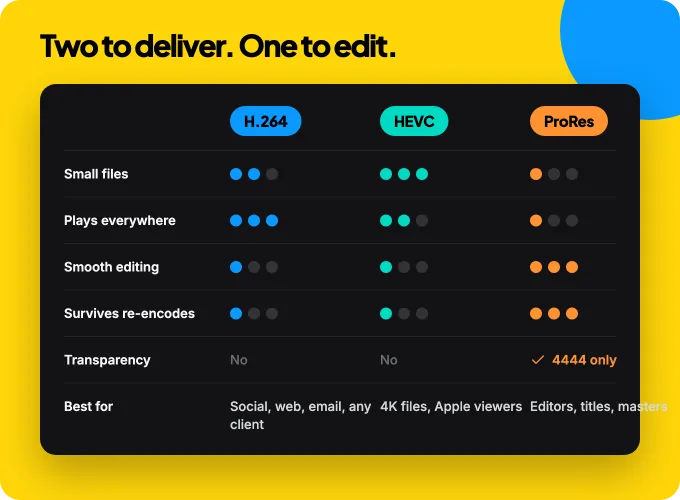
The three codecs answer different questions. H.264 and HEVC ask "how small can this file get and still look right?" ProRes asks "how many times can I re-edit this and lose nothing visible?"
| H.264 (AVC) | HEVC (H.265) | ProRes 422 / 4444 | |
|---|---|---|---|
| Built for | Delivery | Delivery | Editing and mastering |
| Standard | ITU-T H.264, first published 2003 | ITU-T H.265, first published 2013 | Apple codec family |
| Compression | Inter-frame (frames reference each other) | Inter-frame, more efficient | Intra-frame (each frame stands alone) |
| Typical file size | Small | Smaller at equal quality | Very large |
| Data rate example | 8 Mbps: YouTube's recommended 1080p upload | Not published by platforms | 147 Mbps (422) and 330 Mbps (4444) at 1080p, 29.97 fps |
| Playback | Almost everywhere | Apple devices since iOS 11 / macOS 10.13; varies elsewhere | Editing apps and Apple players; not for social uploads |
| Colour sampling | Usually 4:2:0 in delivery files | Usually 4:2:0 in delivery files | 4:2:2 at 10 bits (422) or 4:4:4 up to 12 bits (4444) |
| Transparency | No | No in common delivery files | Yes, ProRes 4444 only |
| Best for | Social, web, email, clients on any OS | 4K files, Apple viewers, smaller archives | Handing off to an editor, motion graphics, masters |
ProRes figures come from Apple's ProRes white paper (April 2022). The YouTube figure is from YouTube's recommended upload settings. "Usually 4:2:0" describes typical delivery exports, not a limit of the standards.
H.264 (AVC): the codec that plays everywhere
H.264, also called AVC, is the ITU-T recommendation "Advanced video coding for generic audiovisual services". Its first edition dates from May 2003, and the ITU still updates it. Two decades of hardware decoders mean almost every phone, browser, TV and laptop plays it without asking anything of the viewer.
The platforms still lean on it. YouTube's help page recommends an MP4 container with H.264 video, at 8 Mbps for a 1080p upload at 24 to 30 fps and 12 Mbps at 48 to 60 fps. X's developer docs recommend H.264 High Profile. Meta's API accepts H.264 or HEVC for Instagram Reels.
What you give up is efficiency. At the same visual quality, an H.264 file is bigger than an HEVC one. For a 30-second Reel that rarely matters. For a long 4K file it starts to.
Pick H.264 when: the file goes to a social network, a website, an email or a client whose computer you don't know. It's the answer to "will it play?"
HEVC (H.265): smaller files, narrower support
HEVC is ITU-T H.265, "High efficiency video coding", first published in April 2013. When the ITU announced it in January 2013, it said the new codec would "need only half the bit rate" of H.264. That's the design goal of the standard. How much you save on your own files depends on the encoder, the content and the settings, so treat "half" as a benchmark to test against, not a promise.
Support is the trade-off. Apple says you need iOS 11 or macOS High Sierra (10.13) or later to view or edit HEVC, and that on some older devices support depends on the video's resolution and frame rate. iPhone 7 and later can record HEVC; the "Most Compatible" camera setting switches new videos to H.264. When you AirDrop, message or email an HEVC video, Apple may convert it to a more compatible format such as H.264.
On Windows, HEVC playback relies on Microsoft's HEVC Video Extensions from the Microsoft Store, which not every PC has installed. If a client opens your file on a PC and sees a black frame or an error, that's a likely cause.
Pick HEVC when: you export 4K, you want a smaller file for storage or a download, and the people watching use recent Apple devices or a player you control.
ProRes 422 and 4444: the editing codec
ProRes is Apple's family of editing codecs. Apple's white paper calls every ProRes codec "frame-independent (or 'intra-frame')": each frame is encoded on its own, so an editor can jump to any frame and decode it without rebuilding the frames around it. That's why timelines scrub smoothly on ProRes and why it survives several generations of re-encoding.
The family, with Apple's target data rates at 1920×1080 and 29.97 fps:
| ProRes codec | Sampling | Target data rate |
|---|---|---|
| ProRes 422 Proxy | 4:2:2 | about 45 Mbps |
| ProRes 422 LT | 4:2:2 | about 102 Mbps |
| ProRes 422 | 4:2:2, 10-bit | about 147 Mbps |
| ProRes 422 HQ | 4:2:2, 10-bit | about 220 Mbps |
| ProRes 4444 | 4:4:4:4, up to 12-bit, alpha up to 16-bit | about 330 Mbps |
| ProRes 4444 XQ | 4:4:4:4, up to 12-bit, alpha up to 16-bit | about 500 Mbps |
At 3840×2160 and 30p, Apple's table gives about 589 Mbps for ProRes 422 and 1,326 Mbps for ProRes 4444.
ProRes 422 vs ProRes 4444
ProRes 422 keeps half the colour resolution horizontally (4:2:2) at 10 bits. It's the everyday handoff codec: "nearly all the benefits of Apple ProRes 422 HQ" at 66% of its data rate, says Apple.
ProRes 4444 keeps full colour resolution and adds an optional alpha channel. Apple describes it as "a high-quality solution for storing and exchanging motion graphics and composites", and notes that the two 4444 codecs "are the only ProRes codecs that support alpha channels". If your title or lower third has to sit over someone else's footage, this is the one.
Pick ProRes when: the file goes back into Final Cut Pro, Premiere, DaVinci Resolve or After Effects, when you need transparency (4444), or when you're keeping a master to re-export later. Never upload it to a social network as the final file: it's far heavier than what the platform will keep, and the platform re-encodes it anyway.
How much space does a minute take?
The clearest way to see the gap is one minute of 1080p video at 30 fps.
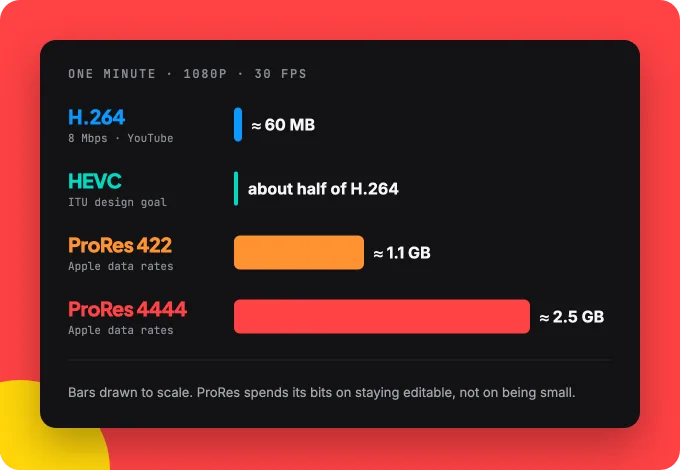
- H.264 at 8 Mbps (YouTube's 1080p recommendation): 8 megabits per second × 60 seconds ÷ 8 bits per byte = about 60 MB.
- HEVC: no platform publishes a recommended HEVC rate. At the ITU's "half the bit rate" goal, the same quality would take about half the space of H.264. Your encoder may do better or worse.
- ProRes 422: Apple's table gives 66 GB per hour at 1080p and 30p (29.97 fps), so about 1.1 GB per minute.
- ProRes 4444: 148 GB per hour in the same table, so about 2.5 GB per minute.
One minute of ProRes 4444 takes about as much space as 40 minutes of H.264 at YouTube's rate. That's not a flaw. ProRes spends its bits on staying editable.
Which codec for which job
Reel, Short or TikTok. Export H.264 in MP4, 9:16 at 1080×1920. The platform re-encodes whatever you send, so a bigger file buys little. If you also need the sizes, ratios and safe zones, our social media video sizes for 2026 has every network in one table.
A review copy for a client. H.264. You don't know their computer, and a file that won't open costs a day. Keep it at 1080p unless they asked for 4K.
A 4K master for your own archive. HEVC if you just want to watch it later on Apple devices, ProRes 422 if you'll edit or re-export from it. If the master has to keep its full colour for grading, use ProRes 4444 (or ProRes 422 HQ for the most detail at 4:2:2), at a cost in disk space.
Titles, logos or lower thirds for an editor. ProRes 4444 with alpha, so the editor can lay your animation over their footage. A delivery codec would flatten it onto a background.
A long recording you'll cut later. If your camera or recorder can capture ProRes and you have the storage, edit from it. Otherwise record HEVC or H.264 and accept that some editors will want proxies.
Should you export ProRes, then transcode?
Often, yes, when the video will go through an edit first. Export one ProRes master, finish the edit, then export H.264 or HEVC for each destination from the edited timeline. Each encode to a delivery codec loses a little; ProRes keeps the intermediate steps clean. If nothing happens after your export except upload, skip ProRes and export H.264 directly.
On a Mac: hardware encoders and what to send to Windows
Apple silicon Macs encode video in dedicated hardware rather than only on the CPU. Apple's announcements say M1 Pro has "dedicated acceleration for the ProRes professional video codec", M1 Max has two ProRes accelerators, and M2 includes a "ProRes video engine" alongside its H.264 and HEVC media engine. Hardware encoding helps a Mac export video faster than real time: see the Kinomo test below.
What to send when the viewer isn't on a Mac:
- A Windows client: H.264 in MP4. It plays without any add-on.
- An editor on Windows using Premiere or Resolve: ProRes in a .mov file usually works in those apps, but ask first, because support varies by app and version.
- An iPhone: H.264 plays on every current iPhone. HEVC needs iOS 11 or later, and some older models only play it at certain resolutions and frame rates.
Exporting from Kinomo
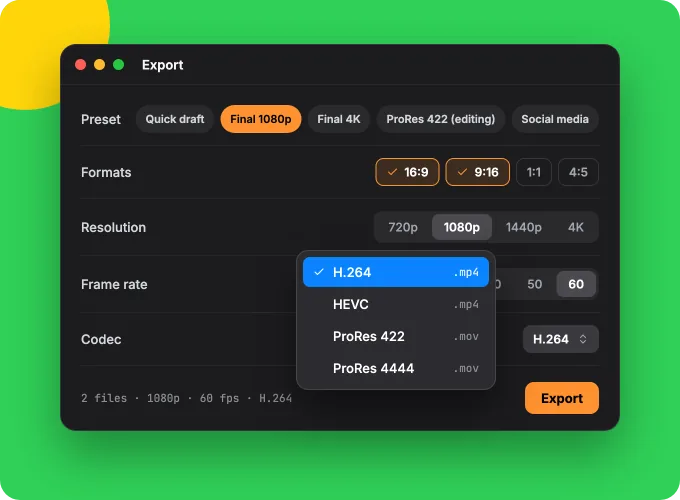
Kinomo, the Mac app we build for AI motion graphics you can edit, exports all three on your Mac: H.264 or HEVC in MP4, ProRes 422 or ProRes 4444 in MOV, from 720p to 4K and from 24 to 60 fps. H.264 and HEVC use the Mac's hardware encoder; ProRes uses it when the chip has one. The export presets follow the logic of this guide: H.264 for 1080p and social, HEVC for 4K, ProRes 422 for editing. When your agent exports through Kinomo's MCP tools, it can choose H.264 or HEVC; ProRes is in the export sheet. In our published test, an 80-second animation rendered to H.264 in 1080p at 60 fps took 27 seconds on a MacBook Pro M1 Pro (median of 6 runs). Free plan. Paid plans from $50/year.
If you're comparing animation tools rather than codecs, our guide to motion graphics software for Mac covers how each one exports.
Limits and honest caveats
- "HEVC is 50% smaller" is a design goal, not a measurement of your file. The ITU's "half the bit rate" describes the standard's target. Encoder settings that favour speed can give up some of that efficiency.
- Platforms re-encode. YouTube, Instagram and TikTok convert what you upload. A higher-quality upload helps up to a point, then it's just a longer upload.
- We didn't benchmark visual quality here. Comparing codecs fairly needs the same encoder settings, a quality metric and many clips. This article sticks to what the standards and Apple publish.
- AV1 shows up in many comparisons. It's a newer delivery codec, and it isn't covered here because the three above are what Kinomo and the main Mac editors export.
Frequently asked questions
Is HEVC better than H.264?
HEVC compresses better: the ITU designed it to need about half the bit rate of H.264 for the same job. H.264 plays on more devices. For files that must play everywhere, H.264 is the better choice; for smaller 4K files watched on recent Apple devices, HEVC is.
Does HEVC reduce quality?
Every delivery codec discards some information, H.264 included. At the same bit rate, HEVC usually keeps more detail than H.264, because that's what its extra efficiency buys. Quality drops when the bit rate is set too low, whatever the codec.
What are the downsides of HEVC?
Compatibility and encoding cost. Apple devices before iOS 11 or macOS High Sierra can't play it, some older devices only play it at certain resolutions and frame rates, and many Windows PCs need Microsoft's HEVC Video Extensions. Encoding is also heavier than H.264 without a hardware encoder.
Should I record in HEVC or H.264?
On a recent iPhone, HEVC (the "High Efficiency" setting) saves space and plays back on Apple devices. Switch to "Most Compatible" (H.264) if you'll share files directly with Windows PCs or older devices. If you plan heavy editing and have the storage, ProRes is better still on cameras that offer it.
Is Apple ProRes better than H.264?
For editing, yes: ProRes is intra-frame, keeps 4:2:2 or 4:4:4 colour and stays visually clean through re-encodes. For delivery, no: its files are many times larger, about 147 Mbps for ProRes 422 at 1080p against YouTube's recommended 8 Mbps for H.264.
Should I export ProRes and then transcode to H.264?
Yes if the video goes through another edit or grade before delivery. Export a ProRes master, finish, then encode H.264 or HEVC for each destination. If you're uploading straight away, export H.264 directly and skip the extra step.
Conclusion
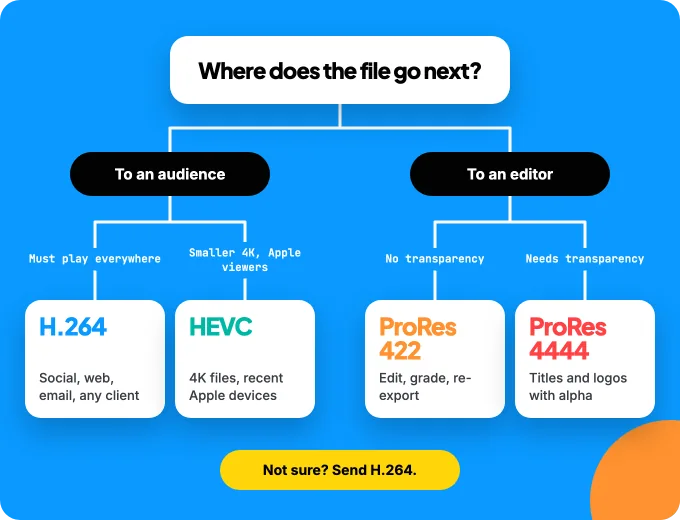
Ask where the file goes next. To an audience: H.264, or HEVC when size matters and you know the device. To an editor: ProRes 422, or ProRes 4444 when it needs transparency. To an archive: HEVC to watch, ProRes to rework. If you want to make the animation as well as export it, Download Kinomo for Mac and export all three from the same project.
Sources · checked on Nov 18, 2026
- Apple, "Apple ProRes" white paper, April 2022 · apple.com/final-cut-pro/docs/Apple_ProRes.pdf
- ITU, "New video codec to ease pressure on global networks", press release, Jan 25, 2013 · itu.int/net/pressoffice/press_releases/2013/01.aspx
- ITU-T Recommendation H.265, High efficiency video coding (first edition 04/2013, latest in force 01/2026) · itu.int/rec/T-REC-H.265
- ITU-T Recommendation H.264, Advanced video coding for generic audiovisual services (first edition 05/2003, latest in force 06/2026) · itu.int/rec/T-REC-H.264
- Apple Support, "Using HEIF or HEVC media on Apple devices" (published Dec 5, 2025) · support.apple.com/en-us/116944
- YouTube Help, "YouTube recommended upload encoding settings" · support.google.com/youtube/answer/1722171
- X Developer Platform, media best practices · docs.x.com/x-api/media/quickstart/best-practices
- Meta for Developers, IG User Media reference · developers.facebook.com/docs/instagram-platform/instagram-graph-api/reference/ig-user/media
- Microsoft Store, HEVC Video Extensions · apps.microsoft.com/detail/9nmzlz57r3t7
- Apple Newsroom, "Introducing M1 Pro and M1 Max", Oct 18, 2021 · apple.com/newsroom/2021/10/introducing-m1-pro-and-m1-max-the-most-powerful-chips-apple-has-ever-built
- Apple Newsroom, "Apple unveils M2", Jun 6, 2022 · apple.com/newsroom/2022/06/apple-unveils-m2-with-breakthrough-performance-and-capabilities
- Kinomo, tech specs and render test · kinomo.app